
User manual
Everything you need to load W-30, S-550 and S-50 disks into WS-30 Player and play them. New to the W-30? Start with the quick start, then read how a W-30 disk is organised.
1Introduction
WS-30 Player is a sampler plugin that loads Roland W-30 floppy disk images and plays their patches the way the original hardware does. It also reads Roland S-550 and S-50 sound disks, which use the same sound data format.
The plugin copies the W-30's memory exactly. Anything that would not fit on a real W-30 does not fit here either. If you know the hardware, you already know the plugin. If you don't, section 4 explains the few ideas you need.
patches in memory
tones in memory
wave memory in two banks
parts and individual outputs
What it reads
| Disk type | File extensions | What it holds |
|---|---|---|
| Floppy disk images | .OUT .W30 .IMG .SDK .S50 .HFE | One W-30, S-550 or S-50 disk |
| Hard disk, ZIP and CD-ROM images | .ISO .NRG .IMG .BIN | Many disks, listed in their groups |
System requirements
| Platform | Requirements | Formats |
|---|---|---|
| macOS | macOS 11 or later, Apple silicon or Intel | VST3 and AU |
| Windows | Windows 10 or 11, 64-bit | VST3 |
WS-30 Player works in any VST3 or AU host, including Ableton Live, Logic Pro, Cubase, FL Studio, Bitwig, Reaper and Studio One.
2Installation and activation
The download is the full plugin. Until you enter a licence key it runs as a demo: everything works, but the sound drops out for 2 seconds every 45 seconds.
Install on macOS
- Unzip the download and double-click WS-30-Player-0.2.0-macOS.pkg.
- Follow the installer. It puts the VST3 and AU versions in the system plug-in folders for you.
- Open your DAW. WS-30 Player appears as an instrument (in Logic Pro, under AU Instruments).
Install on Windows
- Unzip the download.
- Move the whole WS-30 Player.vst3 folder to
C:\Program Files\Common Files\VST3. Windows asks for permission, because that folder is shared by all users. - Open your DAW and rescan plug-ins. WS-30 Player appears as an instrument.
Activate your licence
Your licence key is in the purchase email from Lemon Squeezy.
- Open WS-30 Player in your DAW.
- Click About (or the logo).
- Click Activate, paste your licence key and click Activate.
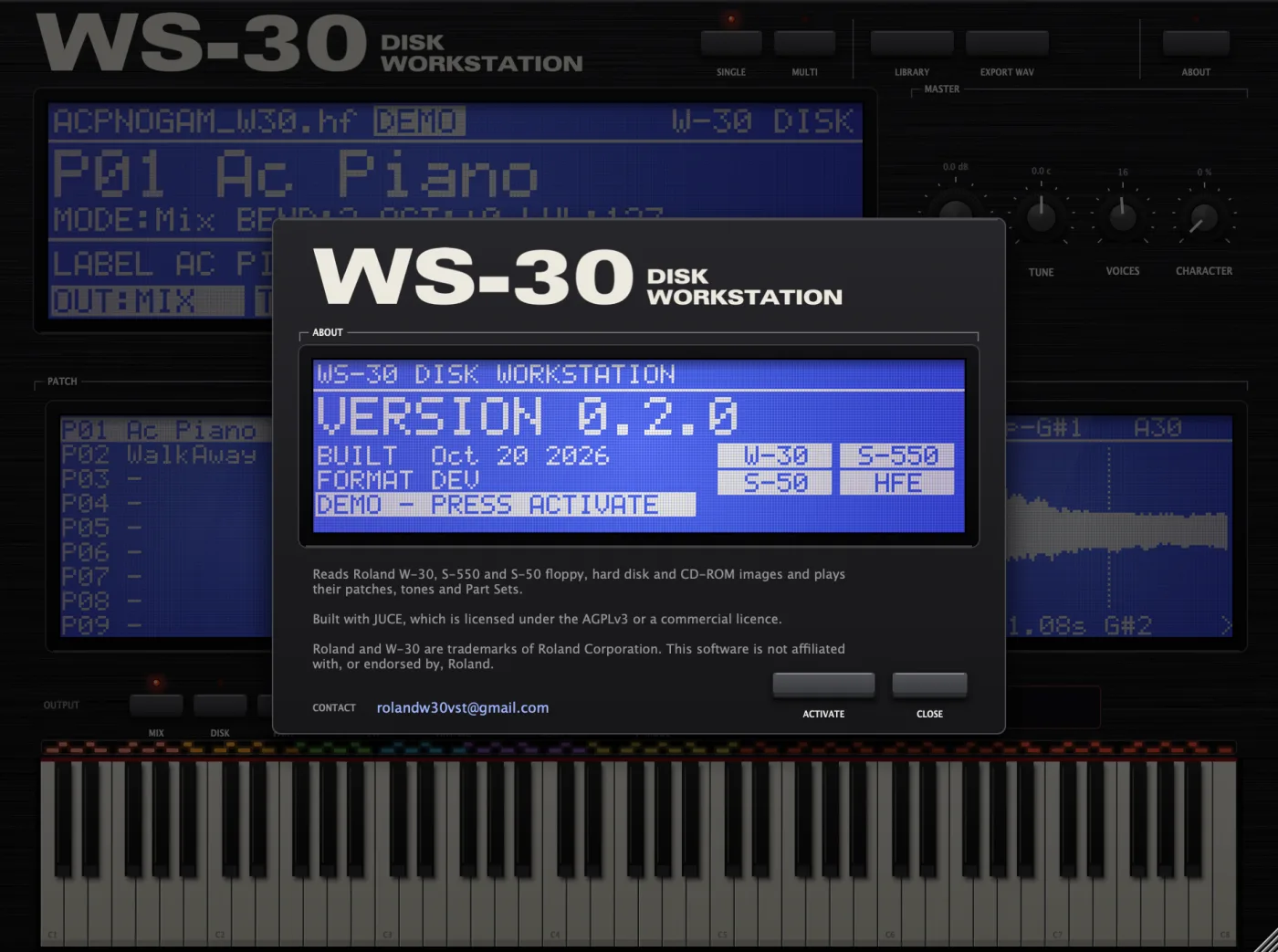
You need an internet connection once, to activate. After that the plugin works offline, and the About screen shows LICENSED TO and your name.
One key works on up to 3 computers. To move it to a new computer, open About on the old one and click Deactivate first.
Updates
WS-30 Player checks for a new version at most once a day. When one is out, the ABOUT key's LED lights and the About screen shows a link to download it. Install it the same way; your licence stays activated.
3Quick start
To hear a disk, double-click it in the library and then play. You don't need LOAD PATCH, LOAD BLOCK or any of the other keys for that.
- Add WS-30 Player to an instrument track in your DAW.
- Click Library at the top of the panel.
- Find the folder with your disk images and double-click it to open it.
- Double-click a disk (for example a .OUT file). The whole disk loads into memory. This is the same as selecting it and pressing Load Set.
- Click Close to return to the main panel.
- Click a patch name on the PATCH screen, then play from your MIDI keyboard.
You can also drag a floppy image from Finder or Explorer straight onto the plugin. It loads the whole disk in one go.
Tip: if you play the on-screen keys with the mouse, click near the bottom of each key. Where you click sets how hard the note plays, and clicks near the top play very quietly. A MIDI keyboard gives the best results.
4How a W-30 disk is organised
A W-30 sound is built from a few samples spread across the keyboard, each one covering a range of keys. Once you know the four words below, the rest of the plugin makes sense.
| Term | What it is | How many |
|---|---|---|
| Disk | One floppy. It holds a complete set of sounds and is loaded into memory as a whole. | One at a time in memory |
| Patch | A playable instrument, such as "Ac Piano". It decides which tone each key plays. | Up to 16 per disk |
| Tone | One sample plus its settings: loop, envelope, filter, root key and level. | Up to 32 per disk |
| Wave memory | Where the sample audio lives, split into two banks, A and B. | 7.2 s per bank, 14.4 s in all |
Zones: why a patch looks split into coloured blocks
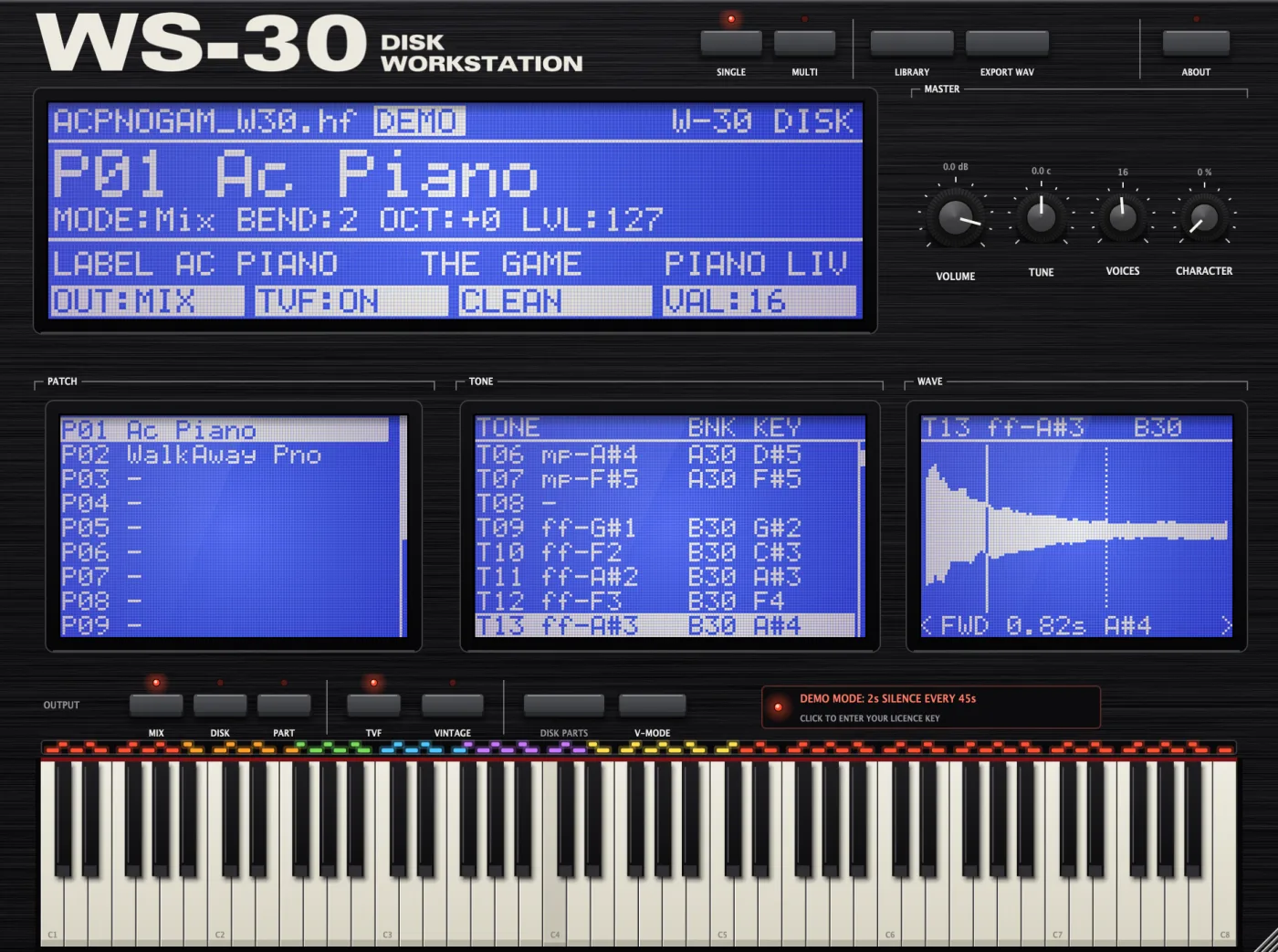
A patch divides the keyboard into zones. Each zone plays one tone. The coloured LEDs above the on-screen keyboard show where each zone starts and ends.
For example, the Ac Piano patch shown in section 5 uses samples of seven piano notes spread across the keyboard. Each sample covers the keys around the note it was recorded at. Within a zone, the sample is played faster or slower to give each key its correct pitch, exactly as on the hardware. So every key plays its own note, but the tone colour changes slightly where one zone hands over to the next.
Each of those seven notes was also sampled twice: played softly (the tones named mp) and played hard (ff). The patch uses the Mix key mode, so every key plays both, and how hard you play sets how much of the loud sample you hear. That's how a W-30 piano sounds brighter when you play harder.
Why the tone list looks out of order
The tone list shows tones in the order they sit in memory, not in pitch order. On the piano disk, the seven soft samples are tones 1 to 7 in bank A, and the seven loud ones are tones 9 to 15 in bank B. So halfway down, the list jumps back to the lowest note. Other disks are arranged differently, depending on how they were made. Whatever the order, the patch maps every sample to the right keys.
Sub tones
A sub tone is a second tone that shares the wave memory of another tone but has different settings, such as a different loop or filter. It costs a tone number but no extra wave memory. Sub tones are marked SUB in the library.
Key modes
Each patch has a key mode that decides what happens when you press a key.
| Key mode | Shown as | What it does |
|---|---|---|
| Normal | Norm | Each key plays one tone. |
| Velocity switch | V-SW | Soft notes play one tone, hard notes play another. The patch sets the switch point. |
| Velocity crossfade | Fade | Two tones blend: the harder you play, the more of the second tone you hear. |
| Velocity mix | Mix | Two tones play together; velocity changes the level of the second. |
| Unison | Uni | One tone plays twice, slightly detuned, for a thicker sound. |
ROM tones
The W-30 has built-in ROM tones that patches can use without any samples on the disk. Those sounds are stored inside the W-30 itself, not on the disk, so WS-30 Player can't play them. Keys that use ROM tones are silent, and the main screen tells you how many there are, for example 3 KEYS USE ROM TONES (SILENT).
5The front panel
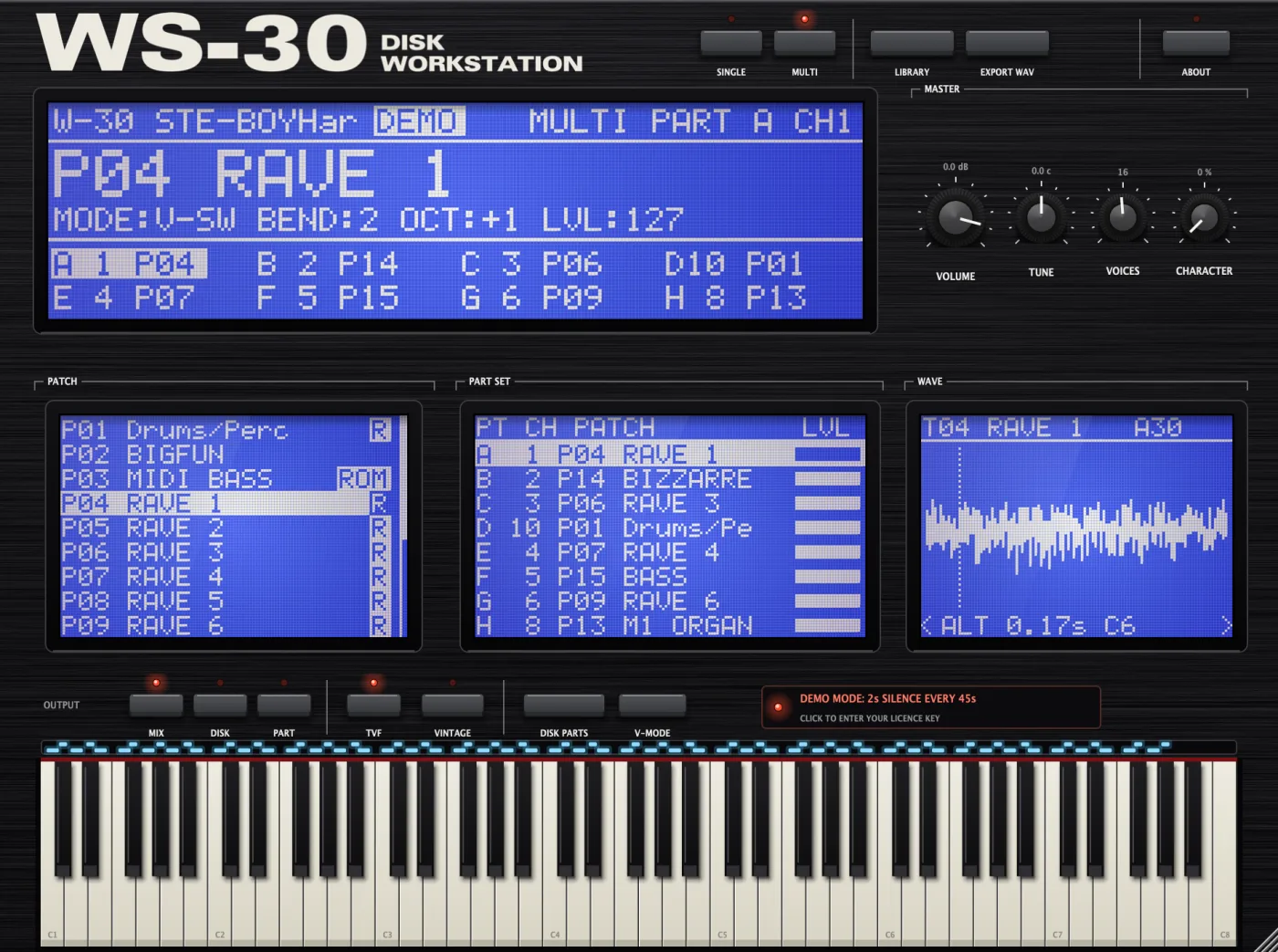
The panel has four screens, a row of keys at the top, a row of function keys above the keyboard, and four knobs. The screens copy the W-30's blue 240 x 64 dot display.
1. Top keys
| Key | What it does |
|---|---|
| Single | Single play mode: one patch, played on every MIDI channel. See section 7. |
| Multi | Multi play mode: up to 8 parts, each on its own MIDI channel. See section 7. |
| Library | Opens the disk library to browse and load disks. See section 6. |
| Export WAV | Saves every sample in memory as a WAV file. See section 8. |
| About | Version, licence activation and contact details. Its LED lights when an update is available. Clicking the logo does the same. |
2. Main screen
The large screen at the top shows the current disk and patch.
- Top line: the disk name, and on the right the disk type (for example W-30 DISK), or MULTI PART A CH1 in Multi mode, or TONE PLAY.
- Patch line: the patch number and name in large letters.
- Details line: key mode, bend range, octave shift and patch level, for example MODE:Norm BEND:2 OCT:+0 LVL:127.
- Status line: the disk label, or a warning such as keys that use ROM tones.
- Bottom tabs (Single mode): the output routing, filter, interpolation and voice mode at a glance. In Multi mode this area shows the 8 parts instead.
With no disk loaded, it shows NO DISK and the file types you can drop onto it. If a disk can't be read, the reason appears here.
3. Master knobs
| Knob | Range | What it does |
|---|---|---|
| VOLUME | -48 dB to +6 dB | Overall output level. Default 0 dB. |
| TUNE | -100 to +100 cents | Master tuning. Default 0. |
| VOICES | 1 to 32 | Polyphony. Default 16, as on the W-30. |
| CHARACTER | 0 to 100% | Adds the W-30's analogue output stage: the treble rolls off (from 18 kHz down to 3.5 kHz), the low end warms up slightly, loud peaks are softly saturated, and a little hiss rides on the sound. The effect is subtle below about 30% and obvious at 100%. Default 0%. |
4. PATCH screen
Lists the 16 patches in memory. Click a patch to play it. In Multi mode, clicking a patch assigns it to the selected part. Scroll with the mouse wheel or the arrow keys.
5. TONE screen (PART SET in Multi mode)
In Single mode it lists the tones in memory with their bank and root key. Clicking a tone switches to Tone Play, as on the W-30: the whole keyboard plays that one tone, using the current patch's level, bend range and octave shift. Click any patch to return to normal patch play.
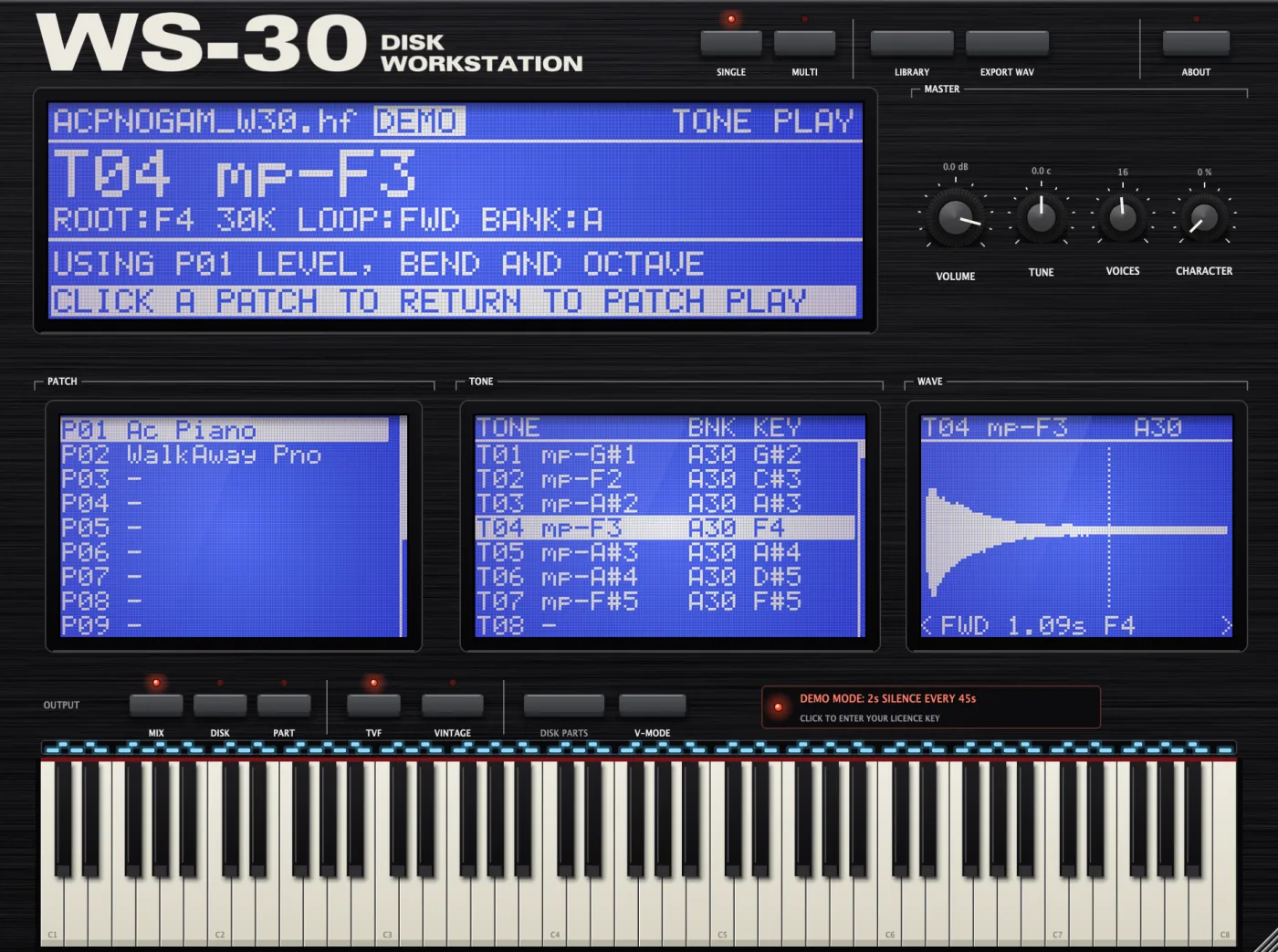
In Multi mode this screen becomes the PART SET. See section 7.
6. WAVE screen
Shows the waveform of the selected tone, with a moving playhead for each note that's sounding. The bottom line shows the loop type (FWD, ALT, 1SHOT or REV), the length in seconds and the root key. Click the left or right half of the screen to step through the tones.
The WAVE screen follows the last tone you played, so you can see which sample each key triggers.
7. Function keys
| Key | What it does |
|---|---|
| Mix | All voices go to the main stereo output. |
| Disk | Each tone or patch goes to the output stored on the disk (Out 1-8). |
| Part | Part A goes to Out 1, part B to Out 2, and so on. |
| TVF | Turns the W-30's resonant filter on or off. On by default. |
| Vintage | Linear interpolation for a grittier sound. Off (Clean) uses smoother 4-point interpolation. |
| Disk Parts | Multi mode only: restores the Part Set stored on the disk, undoing your changes. |
| V-Mode | How voices are shared between parts. See voice mode. |
MIX, DISK and PART are covered in more detail in section 8.
8. Keyboard and zone LEDs
The on-screen keyboard runs from C1 to C8. The row of coloured LEDs above it shows which tone each key plays: one colour per zone. Click an LED to show that tone on the TONE and WAVE screens.
When you play with the mouse, where you click on a key sets how hard the note plays. Click near the bottom of a key for a strong note. Near the top, notes are very quiet.
You can make the window bigger or smaller by dragging its bottom-right corner. Your DAW project remembers the size.
6The disk library
The library works like the W-30's disk functions: you pick a disk, look at what's on it, then load all of it or just part of it into memory. Click Library to open it and Close to return to the panel.
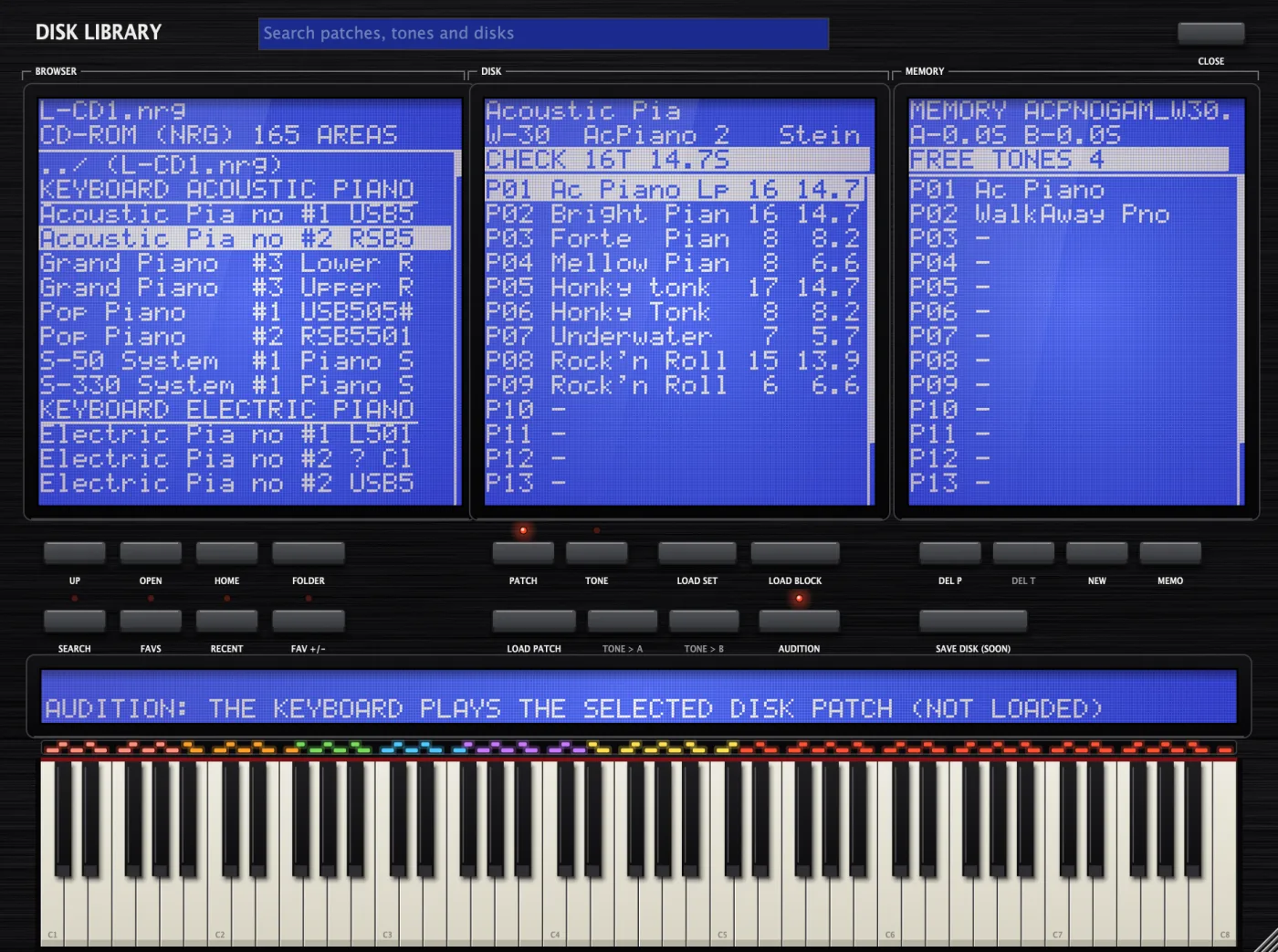
The three screens
| Screen | What it shows |
|---|---|
| BROWSER (left) | Folders, disk images, and the areas inside CD and hard disk images. |
| DISK (middle) | The patches or tones on the disk you've selected. Nothing is loaded yet. |
| MEMORY (right) | What's loaded in the plugin now, the free time left in banks A and B, and the number of free tones. |
The long screen at the bottom shows hints and the result of each operation, for example LOAD SET: COMPLETE.
Browsing
| Key | What it does |
|---|---|
| Up | Goes up one folder. |
| Open | Opens the selected folder or CD/hard disk image, or loads the selected disk. Same as double-clicking. |
| Home | Goes to your Documents folder. |
| Folder | Opens a window to choose any folder of disk images. |
Click a disk once to see its contents on the DISK screen. Double-click it to load the whole disk.
CD-ROM and hard disk images (.ISO, .NRG, .BIN, .IMG) hold many disks. Double-click one to open it; its disks are listed in groups, such as KEYBOARD ACOUSTIC PIANO. Click an area to see it, double-click to load it.
Up/Down, Page Up/Down, Home/End, Enter, Backspace, Delete and Tab work in every list. The library reopens where you left it, including your place inside large CD images.
Checking a disk before loading
In Patch view, each patch on the DISK screen shows how many tones it needs and how many seconds of wave memory. The highlighted line at the top shows the same for the selected patch: CHECK 16T 14.7S means 16 tones and 14.7 seconds. In Tone view, each tone shows its bank (A or B), length in seconds, and SUB if it's a sub tone.
Auditioning
Audition is on when you open the library. While it's on, the keyboard plays the patch or tone selected on the DISK screen, without loading it. That makes it quick to hear a whole folder of disks. Turn AUDITION off to play what's in memory instead.
Loading
The simplest choice is nearly always Load Set (or a double-click). Use the others when you want to combine sounds from several disks.
| Key | What it loads | What happens to memory |
|---|---|---|
| Load Set | The whole disk: patches, tones, samples, Part Set and MIDI settings. | Replaced completely. |
| Load Block | The whole disk's patches, tones and samples. | Replaced, but your Part Set and MIDI settings are kept. |
| Load Patch | One patch and the tones it uses. | Added to what's already there. |
| Tone > A Tone > B | One tone, into wave bank A or B. | Added to what's already there. |
If you've changed memory since loading it, LOAD SET and LOAD BLOCK ask before replacing it.
Building your own set of patches
LOAD PATCH and the TONE keys add sounds to what's already in memory. Memory is limited to 32 tones and 14.4 seconds, the same as a W-30, and a full disk usually uses most of that. So clear memory first:
- Press New to clear memory. The MEMORY screen should show about 7.2 seconds free in each bank and 32 free tones.
- Select a disk in the BROWSER.
- Make sure Patch view is on.
- Click a patch on the DISK screen.
- Click an empty patch (shown as -) on the MEMORY screen. The library picks the first empty one for you.
- Press Load Patch.
- Repeat from step 2 for each patch you want, from the same disk or others.
LOAD PATCH copies the patch's samples into free wave memory and gives its tones free tone numbers. It rewrites the patch's key zones to match, just as the W-30 does. After each load, the next empty memory patch is selected, ready for the next one.
If memory runs out part-way, you see OUT OF MEMORY: 3 TONES NOT LOADED (the number varies). The patch loads, but some keys are silent. Free some space with DEL P or NEW and try again.
To load one tone, switch to Tone view, click a disk tone and a memory tone, then press Tone > A or Tone > B to choose its wave bank.
Managing memory
| Key | What it does |
|---|---|
| Del P | Deletes the selected memory patch and any tones that only it uses. |
| Del T | Deletes the selected memory tone and frees its wave memory. |
| New | Clears memory completely. |
| Memo | Edits the disk label (Sound Memo), up to 60 characters. |
| Save Disk | Coming in a future update: saving memory as a floppy image for a real W-30. In the meantime, memory is saved inside your DAW project. |
An asterisk after MEMORY on the right-hand screen means memory has changed since it was loaded.
Search, favourites and recent disks
| Key | What it does |
|---|---|
| Search | Finds patches, tones and disks by name across every disk in the current folder and its subfolders, including inside CD and hard disk images. Type in the search box at the top; results appear as you type. Double-click a result to load it. Press Esc to clear. |
| Fav +/- | Adds the selected disk or CD area to your favourites, or removes it. |
| Favs | Lists your favourites. Press again to go back. |
| Recent | Lists disks you've loaded recently. Press again to go back. |
The first search in a large folder takes a moment while the plugin indexes it in the background. After that, the index is cached and searches are instant.
7Single and Multi play modes
Use Single to play one patch at a time. Use Multi to play up to 8 patches at once, each on its own MIDI channel, like the W-30's Part Set.
Single mode
One patch plays on every MIDI channel. Click a patch on the PATCH screen to choose it, or send MIDI program change 1 to 16 to select patches 1 to 16.
Multi mode
In Multi mode the middle screen becomes the PART SET. It lists 8 parts, A to H. Each part has a MIDI channel (CH), a patch and a level (LVL). The Part Set loads from the disk with LOAD SET.
| To do this | Do this |
|---|---|
| Select a part | Click its row, or use the Up and Down arrow keys. |
| Change its MIDI channel | Click the CH column and pick a channel, or Off. |
| Change its patch | Click the PATCH column and pick one. Or select the part, then click a patch on the PATCH screen. Enter also opens the patch list. |
| Change its level | Drag the LVL bar, or use the Left and Right arrow keys. |
| Undo your changes | Press Disk Parts to restore the Part Set stored on the disk. |
The on-screen keyboard plays the selected part. The main screen shows that part (for example MULTI PART A CH1), and a summary of all 8 parts along the bottom. A marker flashes beside a part while it's receiving notes.
Program change messages change the patch of every part on that MIDI channel. LOAD BLOCK loads a disk's sounds but keeps your current Part Set, so your channel set-up survives when you change disks.
Voice mode (V-MODE)
The W-30 has 16 voices. V-Mode decides how parts share them.
| Setting | How voices are shared |
|---|---|
| VAL | Shared by all parts. When all voices are busy, a new note always plays, cutting off the quietest sound, preferably one whose key is already released (last note priority). This is the default. |
| VAF | Shared by all parts. When all voices are busy, a new note only takes a voice whose key is released. Held notes are never cut off (first note priority). |
| V1 to V22 | Multi mode only: each part gets a fixed number of voices. For example V1 gives all 16 to part A, V8 gives 8 to part A and 8 to part B, and V22 gives 2 to each part. The menu lists every split. |
Fixed voices stop a busy drum part from cutting off notes in a pad part. The VOICES knob sets the total number of voices, up to 32.
8Outputs, MIDI and your DAW
Individual outputs
As well as the main stereo output, WS-30 Player has 8 individual outputs, Out 1 to Out 8, like the W-30. First enable the extra outputs in your DAW (how you do this depends on the DAW; look for multi-output instruments in its manual). Then choose the routing with the function keys:
| Key | Routing |
|---|---|
| Mix | Everything goes to the main mix. The default. |
| Disk | Follows the Out Assign stored on the disk for each patch or tone. |
| Part | Part A goes to Out 1, part B to Out 2, and so on. Most useful in Multi mode. |
If a sound is routed to an output your DAW hasn't enabled, it plays through the main mix instead, so nothing goes missing.
MIDI
| MIDI message | What it does |
|---|---|
| Notes | Play the patch. Velocity sets the volume, and in V-SW, Fade and Mix key modes, which tone you hear. |
| Pitch bend | Bends by the range stored in the patch (BEND on the main screen). |
| Mod wheel | Adds vibrato. |
| Sustain pedal | Holds notes. |
| Aftertouch | Channel and polyphonic aftertouch, using each patch's own aftertouch settings. |
| Program change 1-16 | Selects patch 1-16. In Multi mode, changes the patch of every part on that channel. |
Pitch bend, mod wheel and sustain work separately on each MIDI channel.
Automation
Your DAW can automate and save these parameters: Patch, Volume, Master Tune, TVF Filter on/off, Interpolation (Clean or Vintage), Polyphony, Play Mode, Output Routing, Voice Mode and Analogue Character.
Saved with your project
The disk image you loaded is saved inside your DAW project, along with any changes you made to memory. Your session reopens with the same sounds even if you move or delete the original disk file. The window size is saved too.
Exporting samples as WAV files
Export WAV saves every sample in memory as a WAV file, so you can use the sounds in another sampler.
- Load a disk.
- Click Export WAV.
- Choose a folder.
Each WAV file includes its root key and loop points, which most samplers read automatically.
9Troubleshooting
Most problems come from loading a patch into memory that's already full, or from playing the on-screen keys near the top. Both are quick to fix.
Common problems
| Problem | Cause | Fix |
|---|---|---|
| The sound is very quiet when I click the on-screen keys. | Where you click on a key sets how hard the note plays. Clicks near the top play very softly. | Click near the bottom of the keys, or play from a MIDI keyboard. Check the VOLUME knob is at 0 dB. |
| OUT OF MEMORY: 3 TONES NOT LOADED after LOAD PATCH | Memory already holds a full disk, so there's no room for the new patch's samples. | Press New to clear memory, then LOAD PATCH again. If you just want to play the disk, double-click it instead. |
| CAN'T EXECUTE: NEED 6 FREE TONES | Memory doesn't have enough free tone numbers for the patch. | Press New, or delete patches you don't need with Del P. |
| CAN'T EXECUTE: BANK A FULL after TONE > A | No free wave memory left in that bank. | Try Tone > B, or free space with DEL T. |
| A tone loaded with TONE > A or B sounds cut short. | There wasn't enough free wave memory in the bank, so the sample was cut to fit, as on the W-30. | Free more space and load it again. |
| Some keys are silent, and the screen says KEYS USE ROM TONES (SILENT) | Those keys use sounds stored inside the W-30 itself, not on the disk. | None: those sounds aren't on the disk. Other keys play normally. |
| The sound drops out for 2 seconds every 45 seconds. | The plugin is in demo mode. DEMO shows on the main screen. | Activate your licence: About then Activate. |
| The whole keyboard plays one sample. | You clicked a tone, which switches on Tone Play. The main screen shows TONE PLAY. | Click any patch on the PATCH screen. |
| A drum key plays at the same pitch wherever I play it. | Drum tones are often set to a fixed pitch on the disk, as on the hardware. | None needed: this is how the disk was made. |
| The tone changes character at certain keys. | Each zone uses a different sample. The change is where one sample hands over to the next. | None needed: this is how multi-sampled W-30 sounds work. |
| WS-30 Player doesn't appear in my DAW. | The DAW hasn't rescanned its plug-ins. | Rescan plug-ins in your DAW. On Windows, check the .vst3 folder is in C:\Program Files\Common Files\VST3. |
Disk messages
| Message | What it means |
|---|---|
| No sample data found on this disk. It may be a system (OS) disk or an unsupported format. | The disk holds no sounds. W-30 system disks, which hold the operating system, look like this. |
| Not a 720K disk image | The file isn't a W-30, S-550 or S-50 floppy image. |
| HFE image could not be decoded | The .HFE file is damaged or isn't a W-30 disk. |
| No W-30 / S-550 data found on this CD image | The CD image doesn't contain Roland sampler disks. |
| SOURCE TONE IS EMPTY | The disk tone you chose has no sample. |
Activation messages
| Message | Fix |
|---|---|
| That licence key wasn't recognised. | Copy the key again from your purchase email, with no extra spaces. |
| This key is already activated on 3 computers. | Deactivate one of them: ABOUT then DEACTIVATE on that computer. |
| Couldn't reach the licence server. | Check your internet connection and try again. |
10Support and glossary
Getting help
Email [email protected]. The address is also on the About screen. To help us sort out a problem quickly, please include:
- the version number from the About screen
- your computer (Mac or PC) and operating system version
- your DAW and its version
- the name of the disk file you were using
- what you did, what you expected, and what happened instead
A short screen recording is often the quickest way to show a problem.
Glossary
| Term | Meaning |
|---|---|
| Bank | One half of wave memory, A or B. Each holds 7.2 seconds at 30 kHz. |
| Disk image | A file holding an exact copy of a floppy disk, such as a .OUT or .HFE file. |
| Key mode | How a patch responds to each key: Norm, V-SW, Fade, Mix or Uni. |
| LOAD BLOCK | Loads a whole disk's sounds but keeps your Part Set and MIDI settings. |
| LOAD SET | Loads everything on a disk, replacing memory. |
| Loop | How a sample repeats while a key is held: FWD (forward), ALT (back and forth), 1SHOT (plays once) or REV (reverse). |
| Memory | The sounds currently loaded in the plugin: up to 16 patches and 32 tones. |
| Part | One of 8 slots (A to H) in Multi mode, each with its own MIDI channel, patch and level. |
| Part Set | The 8 parts together, stored on the disk. |
| Patch | A playable instrument made of one or more tones laid out across the keyboard. |
| Root key | The note a sample was recorded at. It plays at its original pitch on this key. |
| ROM tone | A sound stored inside the W-30 itself. WS-30 Player can't play these. |
| Sub tone | A tone that shares another tone's sample but has its own settings. |
| Tone | One sample plus its settings: loop, envelope, filter, root key and level. |
| Tone Play | A mode where the whole keyboard plays one tone. Click a tone to enter it, a patch to leave it. |
| TVA | The volume envelope of a tone. |
| TVF | The resonant filter of a tone, with its own envelope. |
| Wave memory | Where sample audio is stored: 14.4 seconds in all, in two banks. |
| Zone | A range of keys that plays one tone. Shown by the coloured LEDs above the keyboard. |